

























Search
You can quickly search on the Sidebar for customers, contacts, emails, and tickets in the project database you are logged into.
Table of Contents
Quick Search
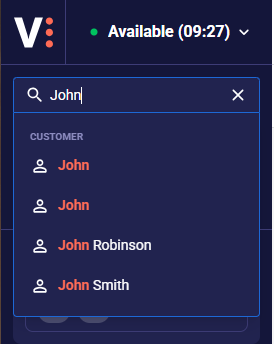
When you start typing in the Search field, results are immediately displayed to you.
 .
.
You can search by:
- Customer name
- Contact name
- Contact phone number
- Contact email address
- Ticket title
- Ticket ID/Number
- A Ticket’s Email history, including the sender, the recipient, and subject fields
- Email sender, recipient, and subject fields for those emails that are not assigned to a ticket
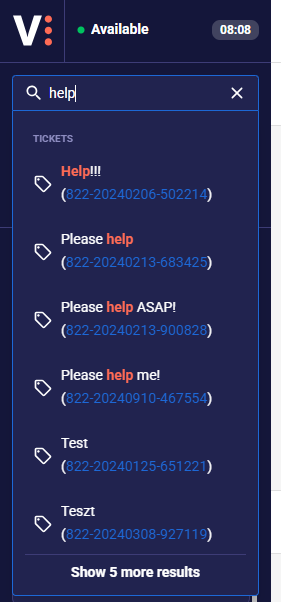
The first 6 results are displayed to you in ABC order. By default, customers are displayed first, followed by contact, email, and ticket results.
Opening an Item
You can immediately open the items from the list of results.
When you select a customer or a contact, the customer will be displayed to you.
When you select a ticket, the ticket will be displayed to you, and you can start an interaction with the related customer.
When you select an email, it will be opened for you as you would have opened it from your sidebar.
Note: You cannot open a ticket or an email if it is locked by another user.
 .
.
Partial search
Searching for the customer-related fields by default works by matching results at the beginning of the word.
 .
.
If you switch the button on the right side, you can change the search to a full partial search, which would display all results where there are matches within the text as well.
 .
.
Note: Partial search can be slower than the default search.
Detailed results
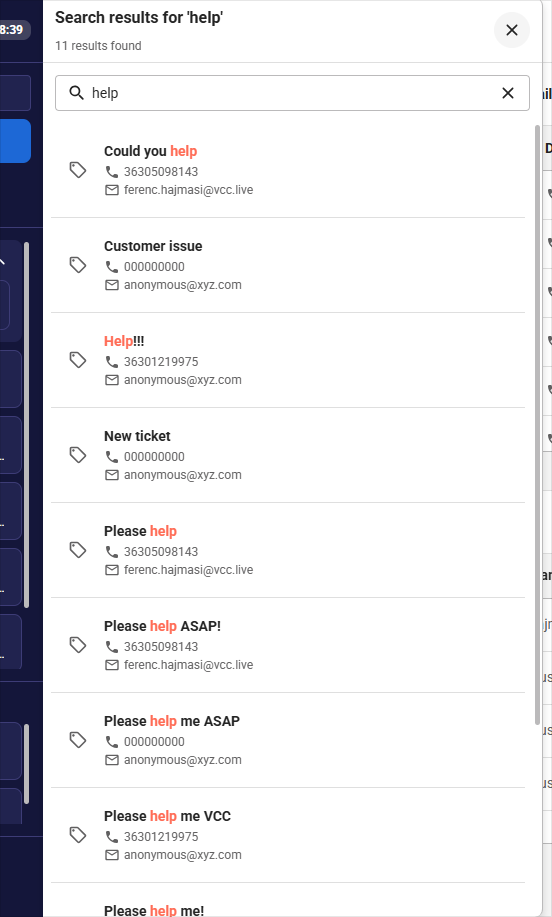
You can view the full list of results for your search phrase, not just the first 6 items, by clicking Show more results.
Now you will see the first 100 results for your query, and you can load the next 100 items by clicking Show more
 .
.
Results are displayed in the order of Customer, Email, Ticket, and Contact. By clicking on an item, it will be opened.
An agent can restart the detailed search for another keyword easily as well.
Advanced Search
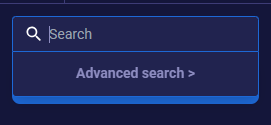
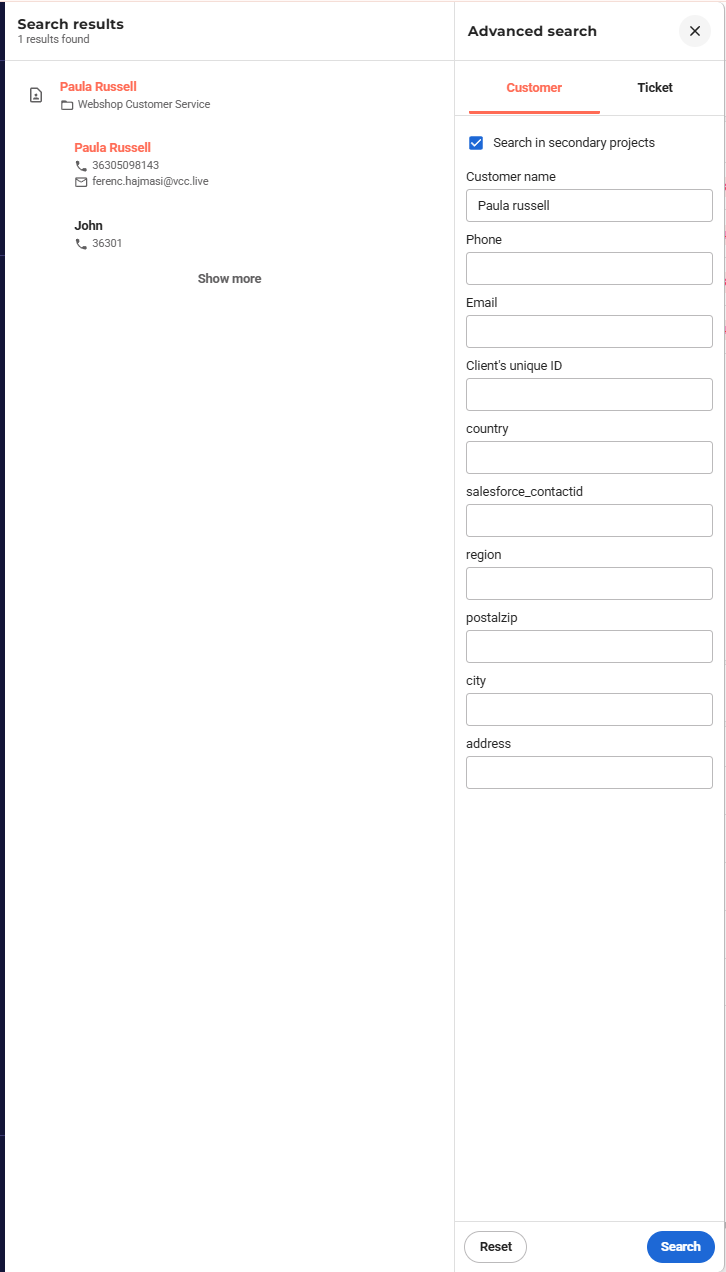
You can search Customer records by indexed fields if such fields exist in your project. You can directly open the Advanced search without searching for any value. Search in secondary projects as well if you are logged in to multiple projects.
 .
.
Search by one or more fields, and you will see all records that match the criteria. If you filter by multiple fields, only those results will be displayed that match all of the criteria.
 .
.
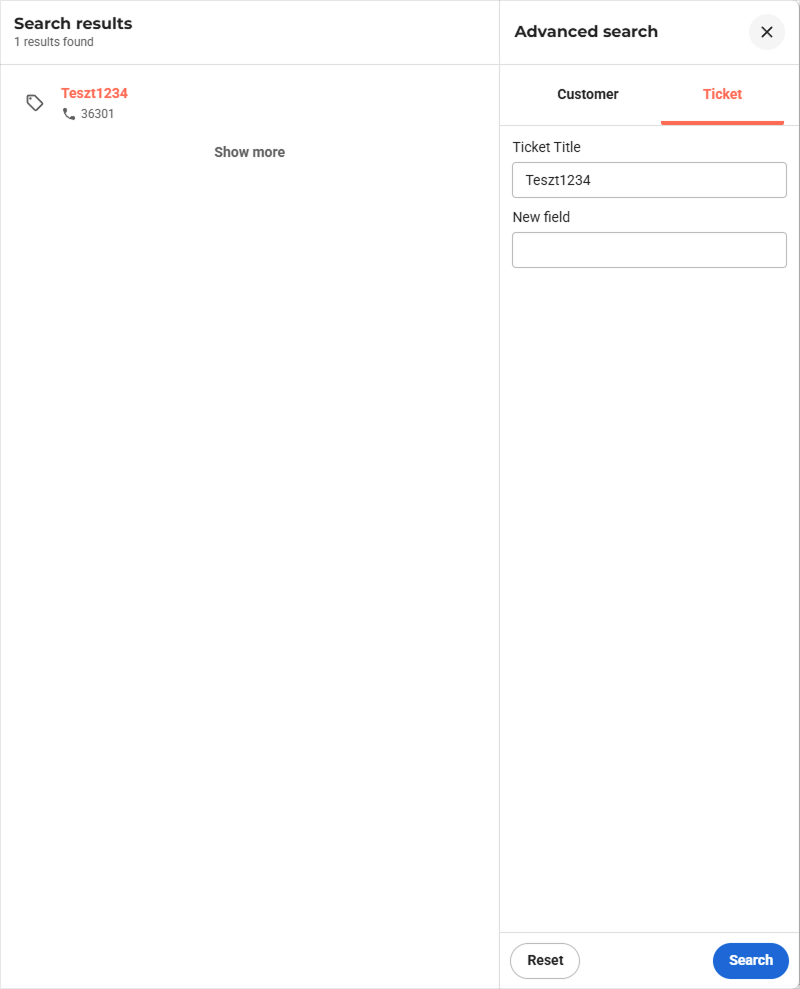
You can also search tickets by custom, indexed ticket fields.
 .
.
Comments
Can’t find what you need? Use the comment section below to connect with others, get answers from our experts, or share your ideas with us.
There are no comments yet.