




















https://vcc.live/wp-content/uploads/2022/03/vcclive_main_logo.svg
  • Product
    Back to all pages
    https://vcc.live/wp-content/uploads/2023/09/omnichannel-test-3.svg
    Omnichannel

    Instantly switch between your customer's preferred channels and handle multiple conversations at once.

    Key channels VCC Live supports

    Voice SMS Email Live chat software Instant messaging apps Social media

    Email, social and more for SYKES and Huawei

    https://vcc.live/wp-content/uploads/2023/09/sykes-topnav-menu.svg
    WhatsApp > Messenger > Case studies >
    https://vcc.live/wp-content/uploads/2023/10/ai-topnav-icon-2.svg
    AI and automation

    Drive intelligent productivity and efficiency with VCC Live's suite of AI and automation tools.

    https://vcc.live/wp-content/uploads/2023/09/call-cetner-software-test-7.svg
    Call center

    Explore our call center software for driving productivity, fueling automation, and delivering exceptional CX.

    Powering Decathlon's call center

    https://vcc.live/wp-content/uploads/2022/09/Decathlon_Austria_Thumbnail.jpg
    Why VCC Brochure Security
    https://vcc.live/wp-content/uploads/2023/09/outbound-test-3.svg
    Outbound

    Handle more live calls, boost talk time, and automate outreach with a feature-filled outbound solution.

    Features to boost outbound activities

    Automatic dialing Voicemail detection Outbound IVR Over-the-phone payments

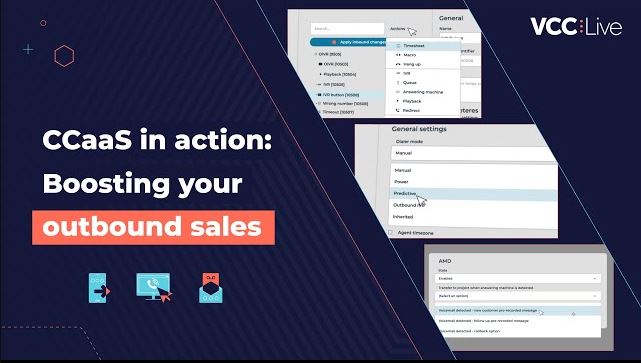
    Fueling your outbound sales

    https://vcc.live/wp-content/uploads/2023/09/boosting-sales-thumbnail-image.jpg
    Sales teams > Case studies > Collections >
    https://vcc.live/wp-content/uploads/2023/09/inbound-icon-3.svg
    Inbound

    Swiftly resolve issues, empower omnichannel, and handle volume with ease with our CX-focused solution.

    VCC live for inbound contact centers

    IVR systems Distributing calls (ACD) Call center scripting KPI dashboard

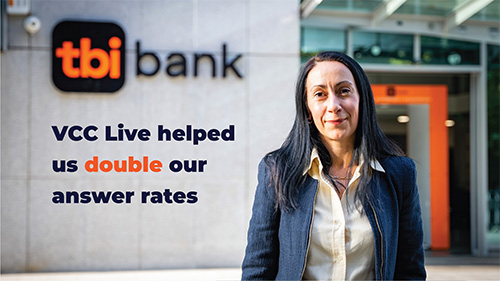
    Transforming customer service for tbi bank

    https://vcc.live/wp-content/uploads/2023/05/tbi-interview-banking.jpg
    Customer service > Case studies > Multichannel >
    vcc live 360 webagent menu icon
    VCC Live 360 Agent

    It's faster without installation! VCC Live works from your agents' browser wherever they are, powered by the latest AI technology.

    https://vcc.live/wp-content/uploads/2023/09/integrations-test-4.svg
    Integrations

    Connect VCC Live with any of your trusted business tools, including CRMs, payment tools, and much more.

    Selected integrations for VCC Live users

    Salesforce Hubspot Looker (Data Studio) Docusign Dialogflow Zapier

    Handle calls without leaving Salesforce

    https://vcc.live/wp-content/uploads/2023/06/salesforce-video-1.jpg
    Looker case study > Release center > Security >
  • Solutions
    Back to all pages
    https://vcc.live/wp-content/uploads/2023/08/sales-call-center-icon.svg
    Sales teams

    Connect and sell more than ever before with an automation-led solution for driving sales success.

    Powerful BI for next-level sales

    https://vcc.live/wp-content/uploads/2023/09/effective-communicatio-case-study-topnav.png
    https://vcc.live/wp-content/uploads/2023/08/customer-service-call-center-icon.svg
    Customer service

    Orchestrate a high-volume handling and resolution-focused approach that delights customers.

    92% of calls within SLA

    https://vcc.live/wp-content/uploads/2023/09/decathlon-case-study-topnav-2.png
    https://vcc.live/wp-content/uploads/2023/08/debt-collection-call-center-icon.svg
    Debt collection

    Make collections faster and simpler to speed up repayments and recover like never before.

    94% voicemail detection rate

    https://vcc.live/wp-content/uploads/2023/09/delfin-group-case-study-topnav.png
  • Industries
    Back to all pages
    https://vcc.live/wp-content/uploads/2025/11/bpo-call-center-icon2.svg
    BPO

    Deliver consistent, high-quality customer interactions at scale with a flexible, automation-ready contact center platform.

    2,000+ hours of active monthly talk time

    https://vcc.live/wp-content/uploads/2023/09/effective-communicatio-case-study-topnav.png
    https://vcc.live/wp-content/uploads/2025/11/retail-call-center-icon2.svg
    Retail

    Create seamless omnichannel shopping experiences and resolve customer inquiries faster across every touchpoint.

    92% of calls handled within SLA

    https://vcc.live/wp-content/uploads/2023/09/decathlon-case-study-topnav-2.png
    https://vcc.live/wp-content/uploads/2025/11/banking-call-center-icon2.svg
    Banking

    Support secure, compliant customer communications while speeding up loan processing, onboarding, and resolution workflows.

    Over 50% increase in efficiency

    https://vcc.live/wp-content/uploads/2025/11/tbi-bank-2.png
    https://vcc.live/wp-content/uploads/2025/11/insurance-call-center-icon2.svg
    Insurance

    Enhance policyholder engagement with efficient claims handling, smooth onboarding, and proactive communication.

    20% of workforce saved with automation

    https://vcc.live/wp-content/uploads/2025/11/waberer_topnav.png
    https://vcc.live/wp-content/uploads/2025/11/consumer-lending-call-center-icon2.svg
    Consumer Lending

    Accelerate loan servicing and repayments, and ensure reliable outreach with automated, compliant workflows.

    Higher efficiency and 30% more calls handled

    https://vcc.live/wp-content/uploads/2025/11/4finance_2.png
    https://vcc.live/wp-content/uploads/2025/11/healthcare-call-center-icon2.svg
    Healthcare

    Strengthen patient experience with secure, timely communication and streamlined scheduling, reminders, and support workflows.

    Improved CX and CSAT scores

    https://vcc.live/wp-content/uploads/2025/11/healthcare-teladoc-2.png
  • Packages
  • Resources
    Back to all pages
    Blog Case Studies Ebooks KPI library Webinars Call Center Courses Customer Interviews Information Security Telco Services Learning Center Developers Release Center Download here
  • Company
    Back to all pages

    Explore more

    About us Why VCC Live Careers News Partners

    Check out our history

    https://vcc.live/wp-content/uploads/2023/09/20yrs-anniversary-thumbnail.jpg
  • Partners
  • Become a partner
  • Email us
CONTACT US VIEW DEMO
User GuidesVCC LiveAI Voice CapabilitiesAI Knowledge
  • About This User Guide
    • Introduction to VCC Live
    • General Information
    • Legal Information
    • Symbols and Notations
  • Installation and Activation
    • System Requirements
    • Firewall Settings
    • Installing VCC 360 Desktop
    • Installing VCC Live
    • Installing the MSI Package
    • Installing on Ubuntu
    • Single Sign-On
    • Connecting IP Phones
  • Learning the Basics
    • Login Screen
    • Admin Workspace
    • Accessing Settings
    • Local Settings
    • Profile and Notifications
    • Timezone Settings
    • IVR Sound Library
  • VCC Live 360
    • General Overview
      • Project selection
      • Menu and Sidebar
      • Agent Dashboard
      • Search
      • My Performance
      • Status and Break handling
      • Agent Settings
      • Browser
      • Internal Chat
      • Comparison with VCC Live Desk
      • Platform
    • Interactions
      • Handling of Calls
      • Handling of Chats
      • Handling of Emails
      • Handling of Customers
      • Handling of Tickets
      • Activities Tab
      • Custom Call
    • Webchat
      • Setup and Usage
      • Customized behaviour
  • User Management
    • Managing Users
    • Managing Teams
    • Managing User Right Groups
    • Changing Agent Status
    • Customizing Status and Break Codes
  • Project Management
    • Creating a New Project
    • Modifying Generic Project Settings
    • Deleting a Project
    • Cloning a Project
    • Mass Project Actions
    • Mass Export Project Data
  • Project-Specific Settings
    • Modifying Generic Project Settings
    • Assign Agents to Projects
    • Assign Agents to Queues
    • Configuring Caller ID Settings
    • Managing Dispositions
    • Type of Dispositions
    • Managing Robinson Lists
    • Setting up After-work Limits
    • Adding Web Pages for Agents
    • Managing Tickets
  • Communication Channels
    • Outbound Calls
      • Outbound Call Handling
      • Dialing Modes
      • Multi-Project Dialing and Inherited Projects
      • SIP Trunk Phone Numbers
    • Inbound Calls
      • Inbound Call Handling
      • Inbound Processes
    • SMS
      • SMS
      • SMS Unicode Character Encoding
    • Chat
      • Live Chat - Website Integration
      • Live Chat - Facebook Integration
      • Live Chat - WhatsApp Integration
      • Messaging channel integrations
    • Email
    • Social Media
  • Database Management
    • Database Management Overview
    • Managing Fields
    • Importing Records
    • Exporting Database
    • Updating Databases
    • Searching Contacts and Records
    • Managing Records List
    • Removing Data
    • Managing the Quota Tool
    • Data Extraction Overview
  • Datasheet and Script Management
    • Datasheets and Scripts Overview
    • Managing Datasheets and Scripts
    • Customizing Datasheets and Scripts
    • Types of Controls
  • AI Quality Management and Call recordings
    • Quality Management Tools
    • AI Quality Management
    • Quality Management Statistics
    • Manage Call Recordings
    • Downloading and Listening to Call Recordings
    • Voice File Name Parameters
  • AI Voice Capabilities
    • AI Voicebot
    • AI Knowledge
    • Google Dialogflow ES
    • Google Dialogflow CX
    • Netlife Robotics
    • Biometrid Voice Biometrics
  • Monitoring
    • Dashboards
    • Real Time Monitoring
    • Inbound Wallboard
    • Quota Wallboard
  • Logs and Statistics
    • Overview
    • CDR Log
    • Chat Log
    • Email Log
    • SMS Log
    • Callback Report
    • User Activity Log
    • User State Log
    • Database Statistics
    • Disposition Statistics
    • Global Inbound Statistics
    • Network Information
    • User-Based Statistics
    • Project-Specific Inbound Statistics
    • Project-Independent CDR Search
    • Weekly Inbound Statistics
    • Webhook Statistics
  • Internal Communication
    • Silent Coaching and Whispering
    • Using the Internal Chat
    • Using the Address Book
    • Releasing News for Agents
  • Subscription Management
    • Prepaid Billing
    • User License Management
    • Checking Your Balance
    • Transaction Details
    • Downloading Invoices
    • Restriction Procedure
    • Bank Transfer Guide
    • Buying Phone Numbers
    • Creating Pro Forma Requests
  • Account Security
    • Changing Your Password
    • Data Deletion After Contract Termination
    • Using a Password Policy
    • Restricting Access Based on IP Addresses
    • Using Two-Factor Authentication
  • Campaign Manager
    • Introduction
    • Importing
    • Advanced Filter
    • Using Filters and Collections
    • Loading from Collection to Campaign
    • Exporting
    • Automatic Import
  • VCC Live for Salesforce
    • Installing VCC Live for Salesforce
    • Agent Workspace
    • Synchronizing Call log to Salesforce
    • Custom Call Pop Setup
  • VCC Live for HubSpot
    • Installing VCC Live for HubSpot
    • Agent Workspace in HubSpot
    • Log interactions in HubSpot
  • VCC Live Mobile
    • Agent Workspace
  • Over-the-Phone Payment
    • Introduction to VCC Live Pay
    • Changing Payment Settings
    • Checking Transaction History
    • Security Considerations
  • Agent Workspace
    • Project Selection Screen
    • Agent Workspace
    • Keyboard Shortcuts
    • Using Break Codes
    • Using the Internal Chat
    • Using the Agent Browser
    • Handling Calls
    • Handling Emails and Tickets
    • Handling Chat Messages
    • User States
  • Privacy Policy
    • Mobile App Privacy Policy
Back to Support and Learning Center

AI Knowledge

Overview

The AI Knowledge module in the VCC Live 360 Admin is a centralized knowledge management solution. It enables users and administrators to organize and upload company documents—such as operating policies, product specifications, FAQs, and internal guides—into structured folders, which the system automatically transforms into a searchable, AI-ready knowledge base (index).

This knowledge base powers VCC Live’s intelligent features (such as AI agent assistants that support agents and automated workflows), ensuring that all AI-generated responses and suggestions are grounded directly in your organization’s verified documentation.


Access & Permissions

  • Location: Available in the VCC Live 360 Admin main navigation menu under AI Knowledge Module.
  • Required Permission: Access to the module is restricted by a dedicated user permission (AI Knowledge). Only administrators and authorized users with this permission can view and manage the module.

Managing Folders (Structuring Knowledge Bases)

Documents can be organized into distinct folders based on topics, products, departments, or projects.

1. Creating a New Folder

  1. Click the New Folder button.
  2. In the right-hand panel, enter a descriptive name for the folder.
  3. Save the folder. It will appear immediately in the folder table.

2. Renaming a Folder

  1. Select the folder you wish to modify in the table.
  2. In the right-hand panel, edit the folder name.
  3. Save your changes. (All existing files and the indexed knowledge base remain intact.)

3. Opening and Browsing Folder Contents

  • Click on a folder’s name in the table to open it.
  • The view switches to the file list, showing all documents stored in that folder along with their indexing statuses.

4. Deleting a Folder

  • If a knowledge base folder is no longer needed, it can be deleted using the delete action on the folder row.
  • Security Confirmation (Captcha): To prevent accidental data loss, deleting a folder requires security confirmation (such as a confirmation prompt or Captcha verification).
  • Warning: Deleting a folder permanently removes all source files contained within it, as well as the entire generated AI knowledge base index.

Uploading & Managing Source Files

1. Supported File Formats

The system is optimized for text-based documentation. The following file formats are supported:

  • PDF (.pdf)
  • Microsoft Word (.docx)
  • Plain Text (.txt)
  • Markdown (.md)

All uploaded files undergo standard VCC Live security and safety verification before being saved.

2. Adding Source Files (Add Sources)

  1. Open the folder where you want to add documents.
  2. In the right-hand panel (Add Sources), click to browse your local computer or drag and drop files directly into the upload area.
  3. Review the selected files in the panel.
  4. Confirm and start the upload.
  5. Once uploaded, the files appear in the table, and the system automatically begins processing and indexing them.

Note: Uploaded files cannot be renamed directly in the interface. To update a document’s name or contents, delete the existing version and upload the revised file.

3. Downloading Files

  • Click the download icon next to any file in the table to download the original document to your computer for verification.

4. Deleting Files

  • Individual outdated or redundant documents can be deleted directly from within a folder.
  • File deletion also requires confirmation.
  • Once deleted, the document’s content is automatically removed from the active AI knowledge base index.

Indexing Lifecycle & Statuses

After files are uploaded to a folder, VCC Live automatically initiates background processing to construct the AI knowledge base index.

1. Status Labels (Index Status)

Each file and folder displays a clear status label in the table to indicate its processing state:

  • Pending / In Progress: The system is currently analyzing the document content and building the AI index.
  • Indexed: The document has been successfully processed; the knowledge base is ready and actively available for VCC AI features.
  • Error: An issue occurred during processing (e.g., an unreadable or corrupted document).

2. Real-Time Status Updates

The VCC Live interface automatically monitors indexing progress in real time. You do not need to refresh your browser page—status badges update automatically as soon as processing completes.

When you are uploading new files to a folder that is being indexed, the indexing will be extended to the new document.


Frequently Asked Questions (FAQ)

Q: Why don’t I see the AI Knowledge menu in Web Admin?
A: Access to the AI Knowledge module requires specific user permissions (AI Knowledge / adminAiKnowledge). Contact your system administrator to ensure this right is assigned to your account.

Q: What type of documents should I upload for best results?
A: Upload clean, well-structured text documents such as FAQs, product manuals, policy documents, and standard operating procedures. Scanned image-only PDFs without readable text layers should be avoided, as text cannot be extracted from them.

Q: If I delete a document from a folder, will the AI still retain information from it?
A: No. Deleting a document immediately removes its processed contents from the active AI knowledge base index, ensuring the AI will no longer reference it in future responses.

Back to Support and Learning Center

Comments

Can’t find what you need? Use the comment section below to connect with others, get answers from our experts, or share your ideas with us.


There are no comments yet.

Click here to cancel reply.

Please note that by clicking on the Submit button, you agree to a member of VCC Live team contacting you with business offers. You can find detailed information on how we can establish contact with you in our Privacy Policy

illustration

Product

  • Call center
  • Omnichannel
  • Outbound
  • Inbound
  • Channels
  • Integrations
  • More on VCC

Main Features

  • IVR system
  • Auto dialer
  • Call queuing software
  • Automatic Call Distribution
  • Call center scripting tool
  • Outbound IVR
  • Predictive dialer
  • Voicemail detection
  • Contact center dashboard

Solutions

  • Customer Service
  • AI and Automation
  • Sales Teams
  • Debt Collection
  • BPO
  • Retail
  • Financial Services
  • Banking
  • Insurance
  • Consumer Lending
  • Healthcare

Resources

  • Blog
  • Case Studies
  • Ebooks
  • Call Center Courses
  • Information Security
  • Learning Center
  • Download
  • Telco services
  • Call center KPI library

Company

  • About us
  • Why VCC Live
  • Careers
  • News
  • Partners
https://vcc.live/wp-content/uploads/2022/03/iso-cert-1-min.png https://vcc.live/wp-content/uploads/2022/03/iso-cert-2-min.png https://vcc.live/wp-content/uploads/2022/03/iso-cert-3-min.png https://vcc.live/wp-content/uploads/2025/04/SOC2-website-e1745483442463.png

Social Media

https://vcc.live/wp-content/uploads/2022/03/linkedin-footer.svg https://vcc.live/wp-content/uploads/2022/03/twitter-footer.svg https://vcc.live/wp-content/uploads/2022/03/facebook-footer.svg https://vcc.live/wp-content/uploads/2022/03/instagram-footer.svg

Call us

https://vcc.live/wp-content/uploads/2022/03/flag-hu.png Hungary
+36 19996400
https://vcc.live/wp-content/uploads/2022/03/flag-en.png UK
+44 2086380169
https://vcc.live/wp-content/uploads/2022/03/flag-de.png Germany
+49 3021782516
https://vcc.live/wp-content/uploads/2022/03/flag-pl.png Poland
+48 123950886
https://vcc.live/wp-content/uploads/2022/03/flag-ro.png Romania
+40 31706167
https://vcc.live/wp-content/uploads/2022/03/flag-usa.png USA
+1 3024988337
  • Privacy Policy
  • Cookie Policy
  • Legal Statement
  • General Terms of Agreement
  • Magyar nyelvű jogi dokumentumok
illustration